Know the App
The control panel, the additional menu, Settings, the monitor strip and keyboard shortcuts.
Know Your Screen
The macOS and Windows apps are laid out slightly differently, and the UI screenshots on this site are from the macOS version — the cards, names and controls work the same on both.
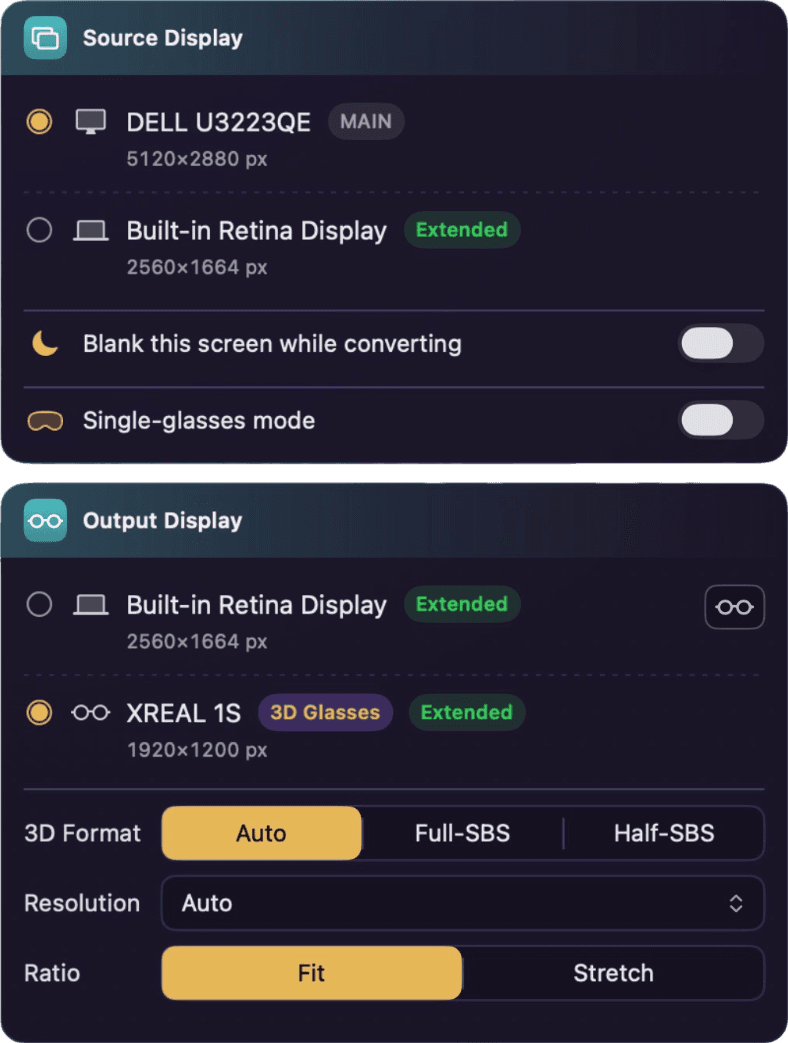
Source & output
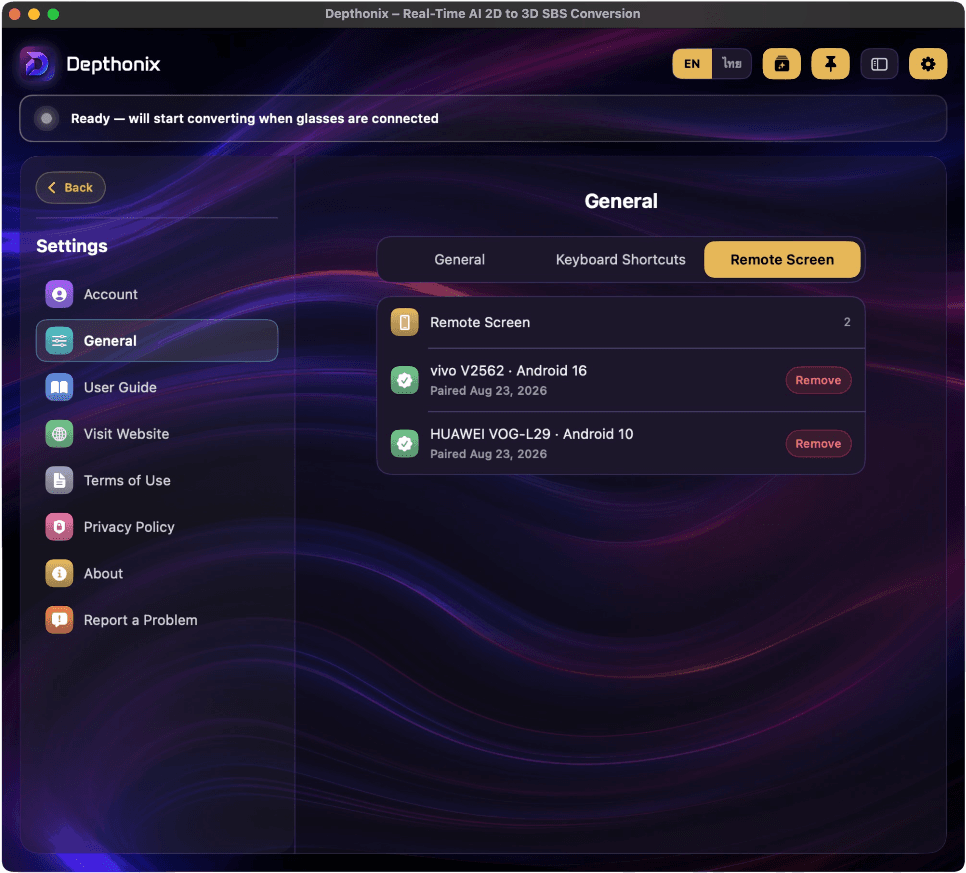
Your displays and glasses are auto-detected, each with its resolution — just tap to pick the source and the output. Choose the 3D format, plus a Resolution picker and a ratio option — along with the Blank-screen-while-converting feature, Single-glasses mode, and Remote Screen, which sends the 3D picture from the computer wirelessly to a smartphone with the AR/XR glasses connected.
Depthonix auto-detects most major AR/XR brands. If yours isn't picked up, the app asks “Is this display AR/XR glasses?” when you press Start — answer Yes and it is marked for you. You can also tap the 👓 button next to it in the Output Display list at any time — your choice is remembered.
When you pick Half-SBS the app sets Ratio to Stretch automatically — the glasses expand the image back to the correct proportions. If the picture still doesn't fill the screen, check that Ratio is still on Stretch.
Turn on “Blank this screen while converting” in the Source Display card and the source screen turns black while you convert — the picture stays only in your glasses, so no one nearby can see what you're watching and the display isn't left glowing. On Windows this needs a one-time setup: the first time you turn it on, approve the permission prompt and restart the PC — after that it works every time. On macOS it works right away, no restart needed.
Turn on Auto-Start at the top right of the Output Display card — conversion begins as soon as your glasses are connected. We recommend connecting the glasses with Full-SBS mode already on before you open the app.
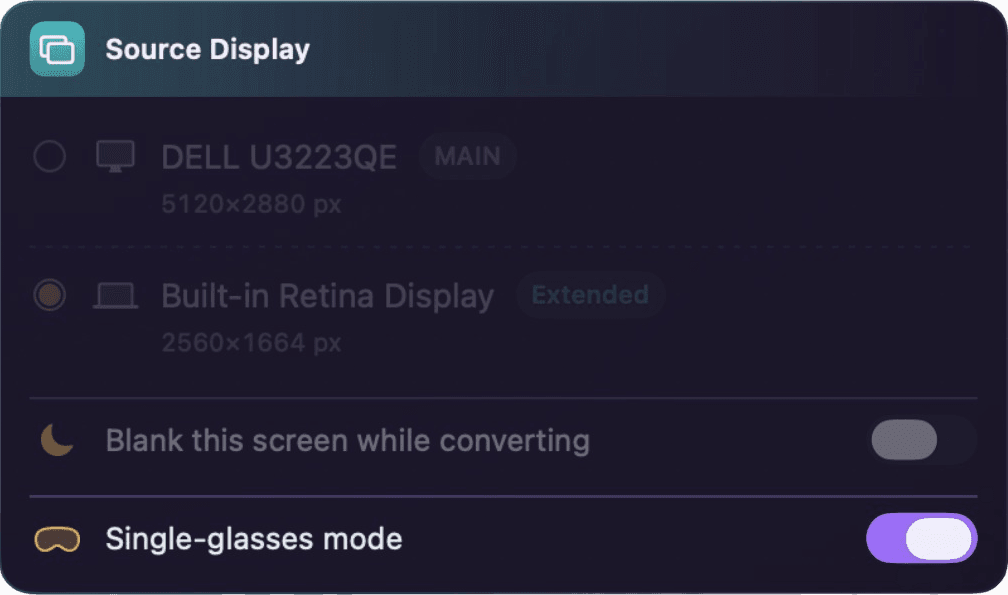
Single-glasses mode
Only have the glasses? No separate monitor needed — turn on Single-glasses mode and the glasses become both the source and the output: your desktop moves to a working screen shown inside the glasses, converted to 3D in real time.
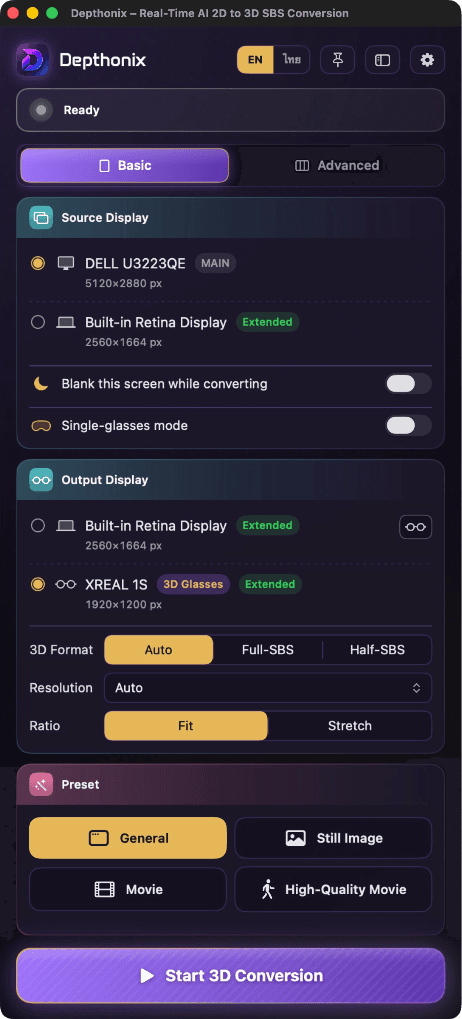
Basic & Advanced modes
Start simple: Basic mode shows just the essentials — pick your displays, choose a preset and press Start. Switch to Advanced anytime for the full control panel with every control.
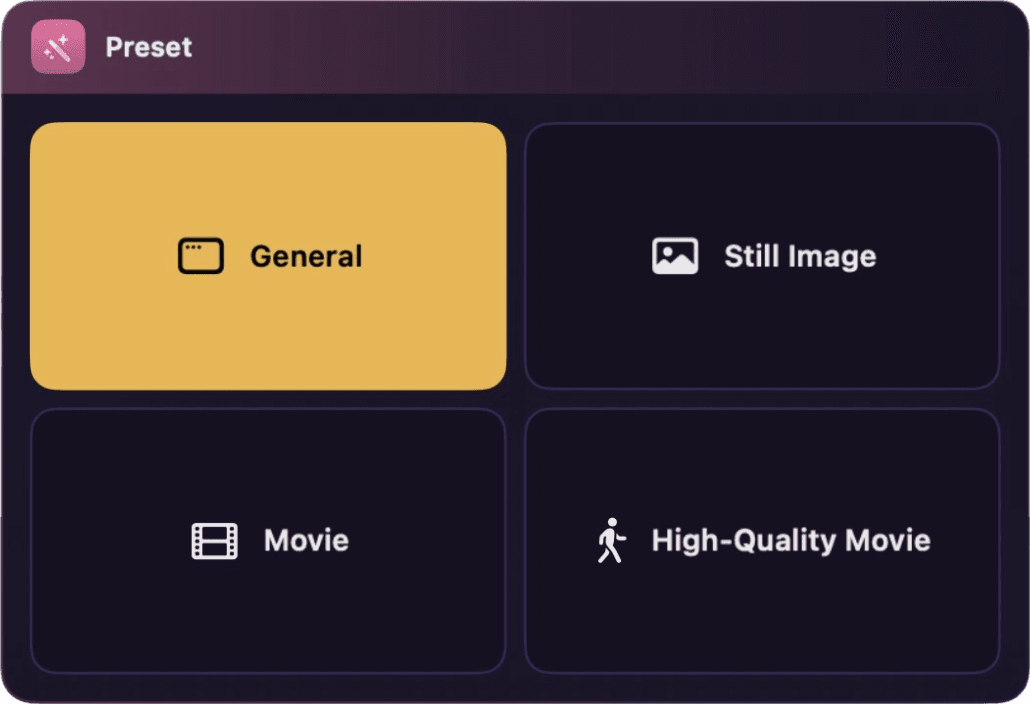
One-tap presets
Four scene presets — General, Still Image, Movie and High-Quality Movie — set depth, frame rate and the rest in a single tap, tuned for what you're watching.
Performance controls
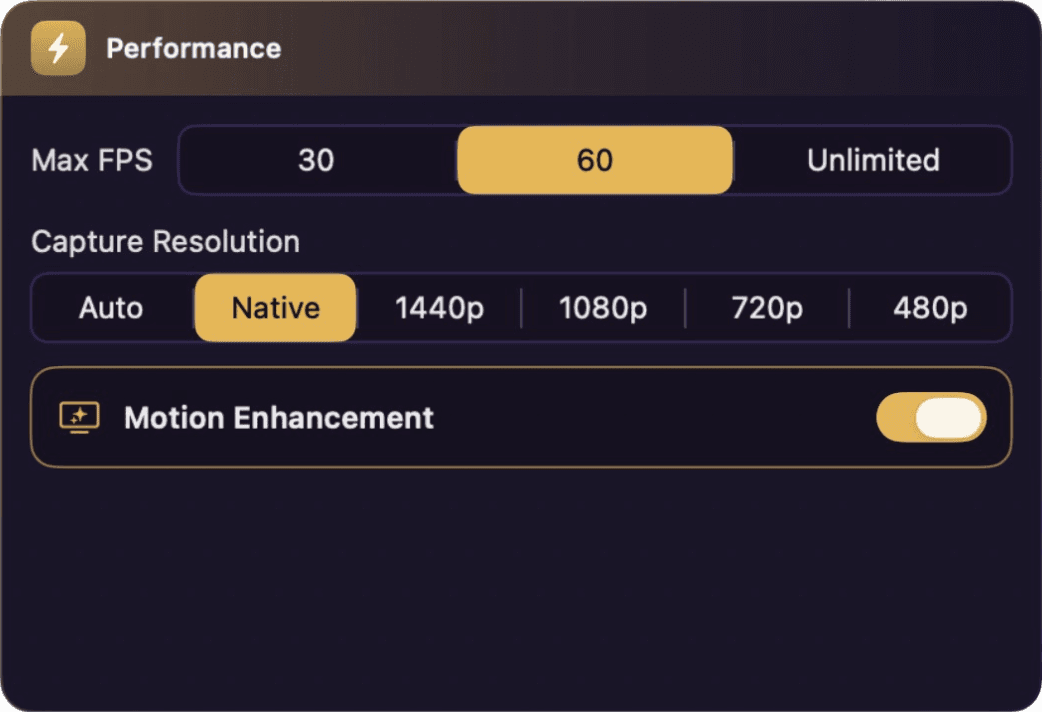
Choose from three Performance Mode levels to suit your machine's resources, and set the FPS ceiling and capture resolution you want — turn on Motion Enhancement for higher-quality 3D motion.
3D & depth
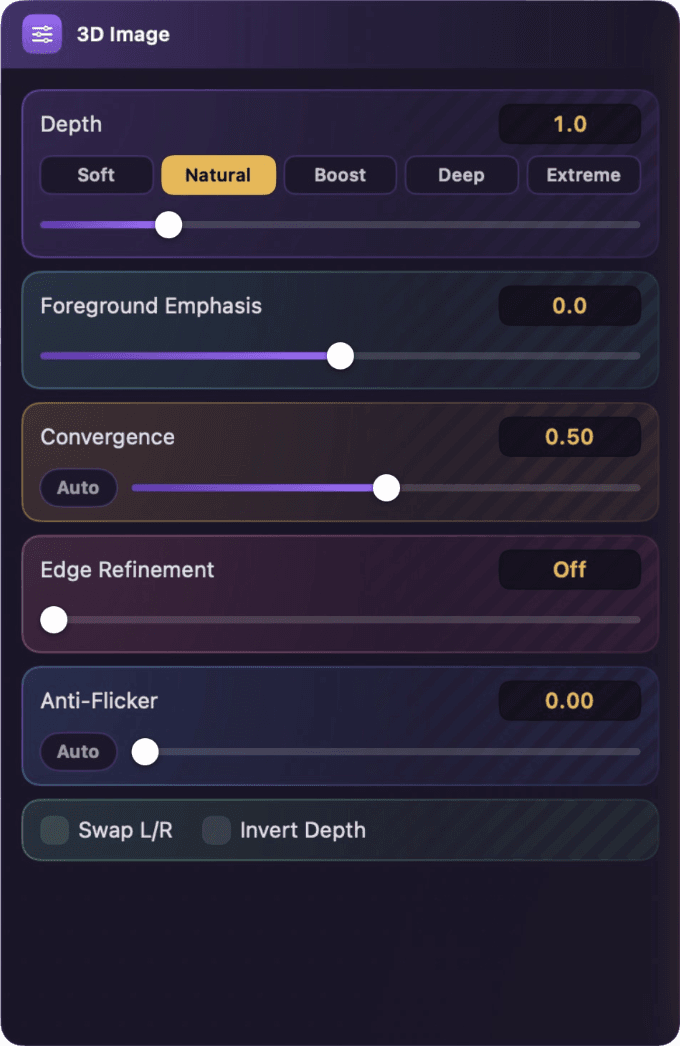
Dial Depth from Soft to Extreme, pull near subjects forward with Foreground Emphasis, set the screen-plane Convergence, sharpen outlines with Edge Refinement, and cut flicker with Anti-Flicker — Plus Swap L/R and Invert Depth toggles.

Live monitoring
Watch the Capture and Render fps live on the monitor strip at the bottom of the panel, alongside the 3D format in use, the current Depth level and the Capture resolution — so you always know how the conversion is running.
Guide Dialog
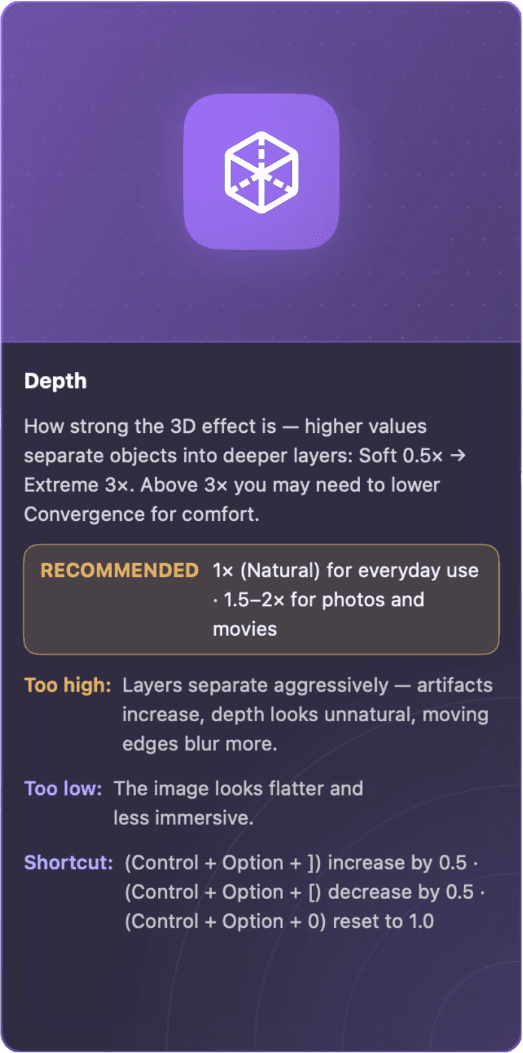
Want tips for tuning the app's settings? Press the Guide Dialog button and the guidance panel appears in Advanced mode — point at any control to see its setting tips.

Compact sidebar
Collapse the panel into a slim icon rail — reach every setting without covering your screen. It rotates to a horizontal bar too.
English & Thai
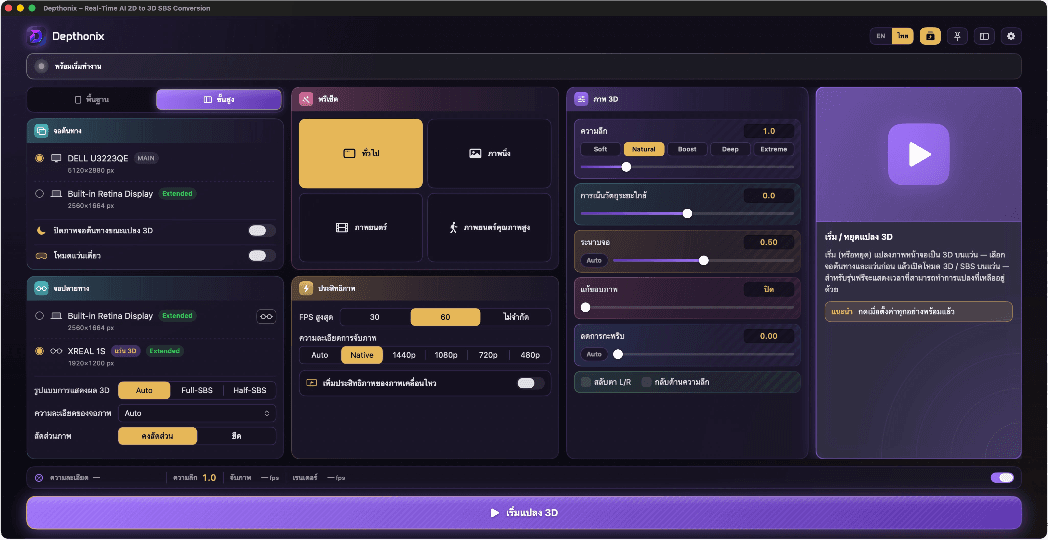
The entire interface is available in both English and Thai — switch languages anytime with a single click.
Additional Menu
The five shortcut buttons at the top right of the control panel, from left to right:

Switches the entire interface between English and Thai.
Toggles the Guide Dialog panel in Advanced mode — setting tips for the control under your mouse pointer.
Keeps the panel above all other windows so it's never covered while you work — tap again to unpin.
Collapses the panel into the compact icon sidebar so it stays out of your way — see “Know your screen” above.
Opens the in-app Settings — your account & sign-in, general options, website links, About and Report a Problem (see the Settings section below).
The Compact Sidebar
Collapsing the panel gives you this icon bar (it rotates between vertical and horizontal). From left to right — the middle icons open each card as a small popover:
Show all 15 buttons
Settings
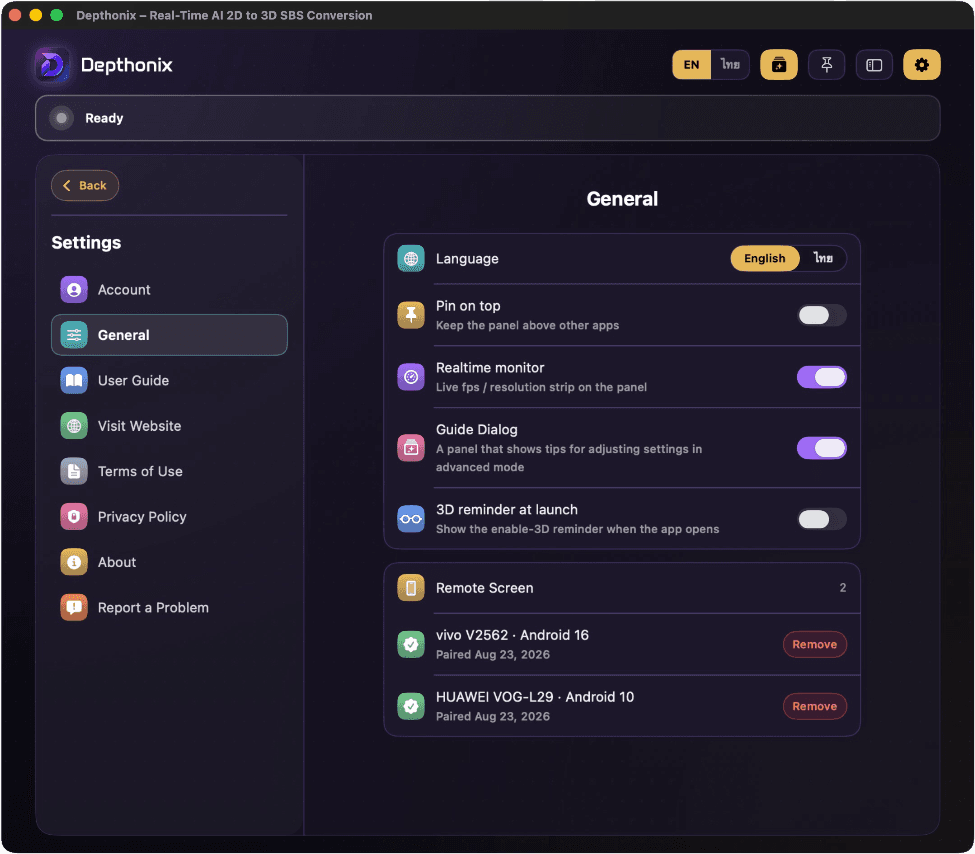
Press the Settings button at the top right of the panel to open the in-app Settings:
Reading the Monitor Strip
The monitor strip at the bottom of the panel (Advanced mode) shows five realtime values — 3D Format, Resolution, Depth, Capture and Render — with an on/off switch at the right end. You can also turn it on or off in Settings → General (Realtime monitor).
The SBS format the current session is actually sending to the glasses — Full-SBS or Half-SBS.
The picture size currently being captured, following your capture-resolution setting.
The depth level currently in effect — it mirrors your Depth slider.
Frames per second grabbed from the source screen. When nothing on screen is moving it shows “Idle” instead of a number — that's normal, not a problem.
How smoothly the 3D image redraws on the glasses — the main number to watch. If the fps stays too low, switch Performance Mode to Balanced or Efficient first, then lower Max fps or the capture resolution.
Keyboard Shortcuts
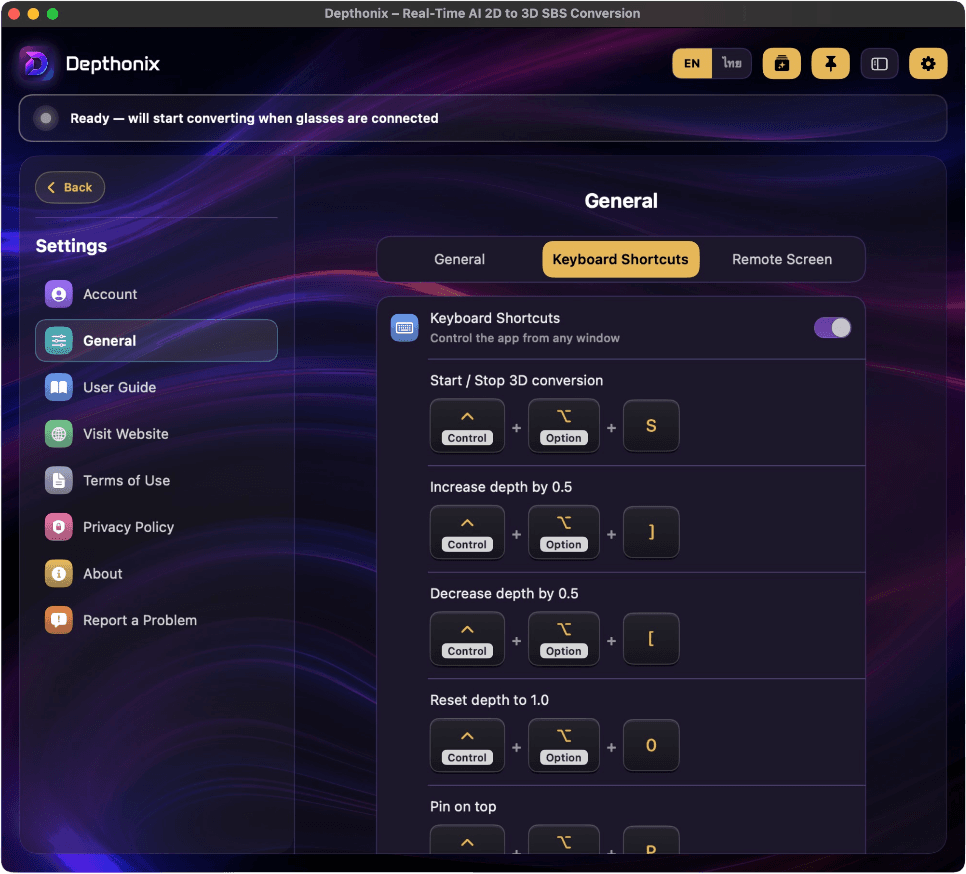
Six global shortcuts that work from any app — even while a game or a video player is in front and you are wearing the glasses. Hold Ctrl + Alt on Windows, or Control + Option on macOS, then press the key:
- The shortcuts follow the physical keys, so they keep working while your input language is Thai. Use the 0, [ and ] keys in the main row, not the numeric keypad.
- While converting, every shortcut shows a short confirmation on the glasses (for example “Depth 1.5”), and every session shows a reminder of the key that stops the conversion right after it starts.
- They follow the same rules as the buttons: Start waits for the cooldown on the Free Version, and Depth cannot be changed on the Free Version — the glasses show a notice instead.
- Turn the whole set on or off in Settings → General → Keyboard Shortcuts. If another app already uses one of these combinations, that row is marked there.