Tuning the 3D Picture
What each 3D and performance setting does, the values we recommend, and the Guide Dialog.
Settings Guide
What each setting does, the values we recommend, and what happens when you push it too far either way.
Convergence, Anti-Flicker and Capture resolution each have an Auto option. Convergence and Anti-Flicker adjust themselves in real time, and Capture resolution's Auto picks the resolution that matches your glasses — leaving them on is the easiest way to get great 3D.
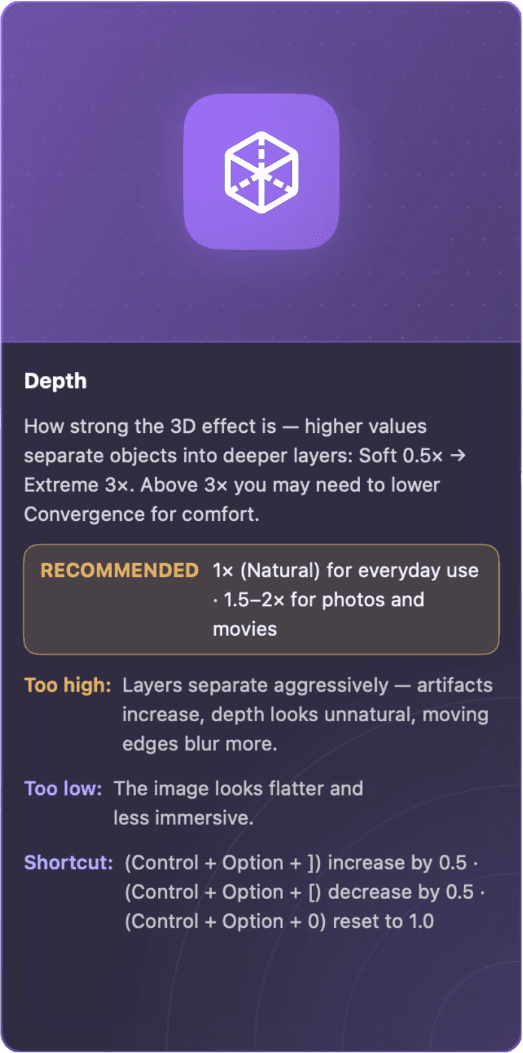
Depth
Recommended1× (Natural) for everyday use · 1.5–2× for photos and movies
Depth
How strong the 3D effect is — higher values separate objects into deeper layers: Soft 0.5× → Extreme 3×. Above 3× you may need to lower Convergence for comfort.
Too high: Layers separate aggressively — artifacts increase, depth looks unnatural, moving edges blur more.
Too low: The image looks flatter and less immersive.
Foreground Emphasis
Recommended0 (default) · raise gently as appropriate
Foreground Emphasis
Pushes near subjects further forward (or, with negative values, eases them back) relative to the background — extra pop for people and objects close to the camera.
Too high: Foreground objects start to look cut out and detached from the scene.
Too low: Negative values flatten near subjects back into the background.
Convergence
RecommendedStart from 1.0, then adjust as appropriate
Convergence
Where the scene sits relative to the screen plane — higher values place the scene behind the screen and make the depth feel stronger; lower values pull the scene toward you and make the depth feel shallower.
Too low: The depth looks shallow, and your eyes have to converge harder, which can cause strain.
Edge Refinement
Recommended0–2 · Start from the lowest setting and increase until satisfied
Edge Refinement
Cleans up the depth around object outlines so edges look crisp instead of haloed or smeared.
Too high: Uses more processing power — heavy scenes may drop frames.
Too low: Object outlines may show slight halos or fuzzy edges.
Anti-Flicker
RecommendedLeave Auto on
Anti-Flicker
Keeps the depth calm and steady while the picture isn't moving much.
Too high: Depth reacts more slowly when things start to move.
Too low: Small text and fine details may shimmer slightly.
Performance Mode
RecommendedBalanced for everyday use · Maximum when quality matters most and the machine can handle it · Efficient if the machine is short on resources or runs too hot
Performance Mode
How much processing the 3D conversion uses. Maximum gives the finest depth detail. Balanced and Efficient use progressively less of the machine's resources and help it run cooler, while the depth of small details and the quality of object edges drop slightly.
Max FPS
Recommended30 for everyday use · 60 for movies
Max FPS
Caps how many frames per second are shown on the glasses.
Too high: Higher rates use more processing power.
Too low: Motion looks less smooth.
Capture Resolution
RecommendedAuto
Capture Resolution
How sharp the captured picture is before it becomes 3D. Native is sharpest — but a very high native resolution costs more to process. Auto picks the resolution that matches each model of glasses, so nothing is processed beyond what the glasses can show.
Too high: Sharper, but heavier — slower machines may drop frames.
Too low: Smoother performance, but the picture turns softer.
Motion Enhancement
RecommendedOn for movies with lots of motion or camera pans · Off when viewing still images, as it can make subject edges look distorted or jagged
Motion Enhancement
Gives subjects cleaner edges in moving pictures, especially when the subject moves quickly or the camera pans. Turning this option on uses more of your machine's resources.
Guide Dialog
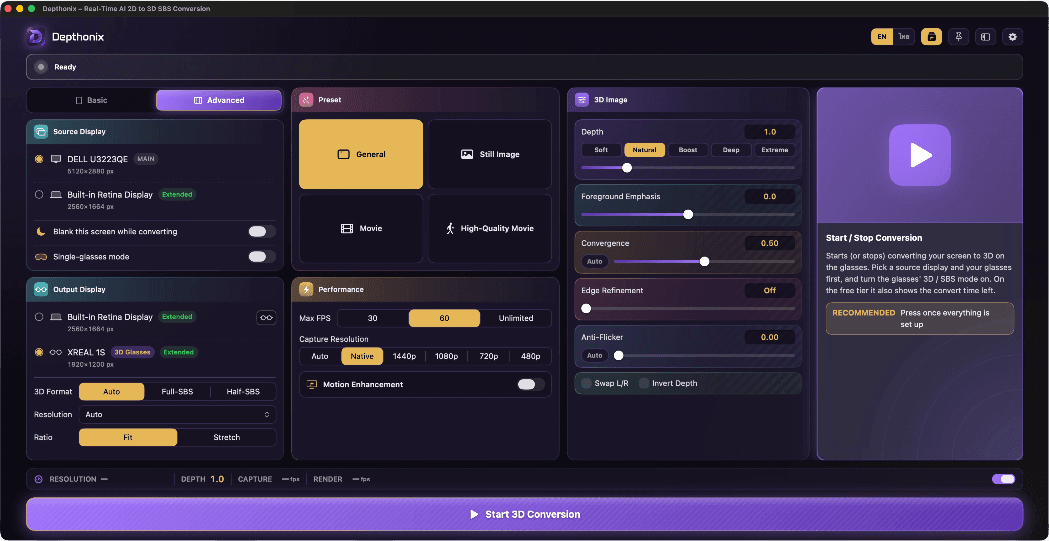
The Guide Dialog is a guidance panel that appears beside the control panel in Advanced mode. Turn it on with the Guide Dialog button at the top right of the panel, or in Settings → General. While it's on, point your mouse at any control and the panel explains it — what the setting does, the value we recommend, and what happens when it's set too high or too low. The same guidance as the Settings guide on this page, right inside the app.