Help & Tips
Tips, streaming services, app updates and how to report a problem.
Tips & Notes
Small things that make a big difference to picture quality and comfort.
Your AR/XR glasses must support either a Full-SBS or Half-SBS viewing mode.
If your glasses support it, use Full-SBS — each eye gets the full resolution, noticeably sharper than Half-SBS (especially for text). Switch the glasses into their 3D mode first, and the app's Auto format will pick it up.
Turn on Auto-Start (the switch on the Output Display card, or Settings → General) and the app starts converting by itself whenever your AR/XR glasses are connected — already connected when the app opens, or connected while it is running. If the glasses are not in 3D Mode yet, the usual reminder appears and converting starts the moment you turn it on. Pressing Stop does not start again until the glasses are reconnected. Normal mode only; not available on the Free Version.
The app needs an internet connection while in use, for license verification and management.
For the smoothest experience, pair the glasses with your computer's main display only — leave extra monitors unplugged while using the app.
If your display runs at a scaled (non-native) resolution, the converted picture may not look as sharp as it would at the native resolution.
A very high-resolution source makes on-screen text tiny and hard to read through the glasses — pick a source display with a comfortable resolution, or lower its resolution before converting.
Depth looks best between 1× and 3× — higher values can distort the depth and create artifacts or blur around people and objects.
The same settings can give different results on different machines — it depends on your hardware, the resolutions of the source and output displays, and each person's eyes. Tune gradually until it feels right for you.
Smoothness (render fps) also depends on your computer's specs — pushing every setting past what the machine can handle may cause stuttering. Switch Performance Mode to Balanced or Efficient, or dial the other settings down. A machine that gets very hot also lowers its own processing power, which can make the picture stutter too.
If you run into a problem with the app — such as conversion not starting, or your account status not updating — the first fix is to quit the app and reopen it. If the app still isn't usable, contact us at support@depthonix.com.
Streaming Services & Protected Content
Some online movie-streaming platforms deliberately block screen capture. When that happens, the video area shows as black in your glasses, while the rest of the screen can still be seen as usual — this is the service provider's own content protection, known as DRM (Digital Rights Management). DRM runs between the service and your browser or video player, so screen-capture tools in general see a black frame there too, and Depthonix does not bypass it.
- Netflix
- Disney+
- Amazon Prime Video
- Max (HBO)
- Apple TV+
- Paramount+
- TrueID, Monomax, Viu, WeTV, iQIYI
- Films rented or bought on YouTube
- Blu-ray playback software
- YouTube — ordinary videos
- Twitch, Facebook, Instagram, TikTok
- Video files on your computer (VLC, PotPlayer, QuickTime, mpv and the like)
- Your own Plex or Jellyfin library
- Games, apps and everything else on your desktop
Application Updates
Every time it launches, Depthonix quietly checks whether a newer version is available. When there is one, a window pops up showing the new version number, with an Update button — or a button that opens the download page. You can also check anytime yourself — open Settings → About in the app and press “Check for Update”.
On macOS, the system may ask for the Screen Recording permission again after you install an update. See how to grant it
On Windows, a User Account Control (UAC) window may appear while the update installs — press Yes to continue.
Reporting a Problem
Ran into something — no 3D picture, a black screen, the app misbehaving, an account or payment issue? There are two ways to reach the team.
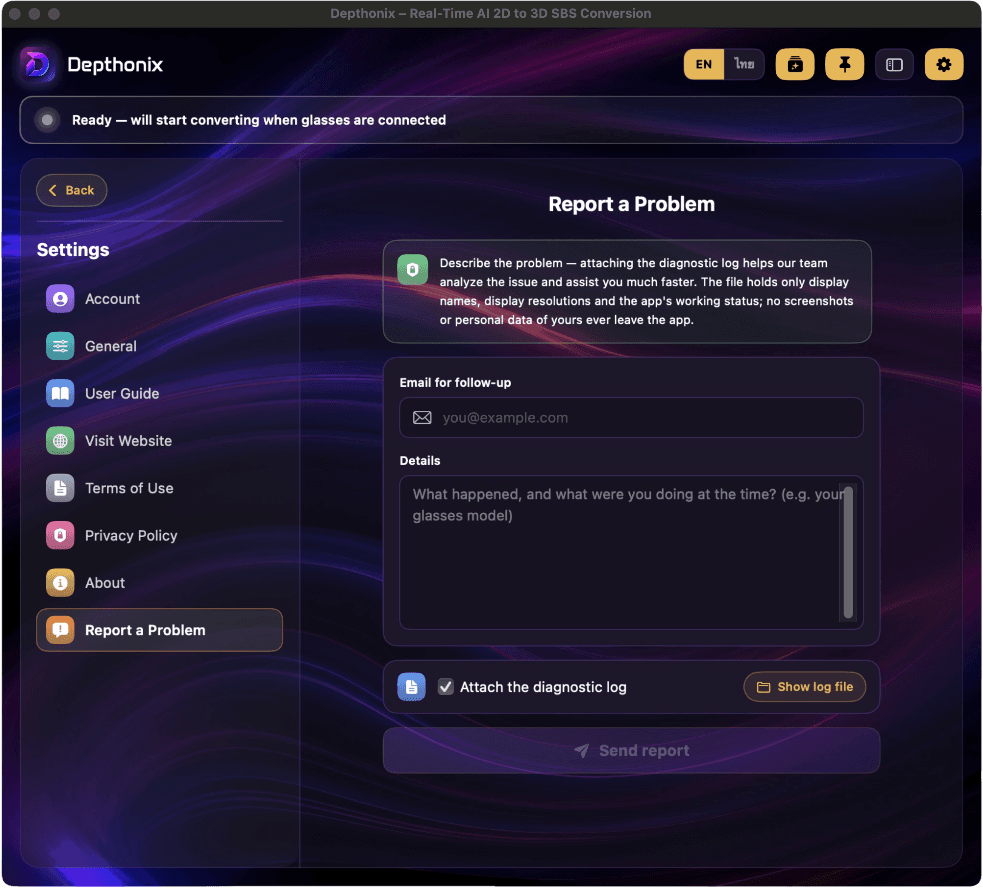
Open Settings → Report a Problem, enter a contact email, describe what happened, and optionally attach the app's log file — the log lets the team see the exact working conditions when the problem occurred and diagnose it much faster. It contains only display names, resolutions, and the app's pipeline status — never screenshots or any personal data. This channel works even when you're not signed in.
Best for account or payment issues, or when the app won't open at all — fill in the form on the Contact page and pick the category that matches (usage questions · glasses test reports · account · app · payment · other), or reach us by email and Facebook, both listed on that page.