Getting Started
Install the app, grant permissions, activate your license and start converting.
Installation
- 1Download the installer (.exe) from the download page and run it.
- 2If Windows shows a “Windows protected your PC” SmartScreen warning, click “More info” then “Run anyway” (see the note below).
- 3Accept the license agreement (EULA), pick an install location if you like, and finish the wizard.
- 4Launch Depthonix from the Start menu and sign in with your account — Windows needs no screen-recording permission.
Screen Recording Permission (macOS)
Depthonix needs macOS Screen Recording permission to read your screen and convert it to 3D. It only reads the screen on your device — nothing is ever uploaded (see our Privacy Policy). You grant it once:
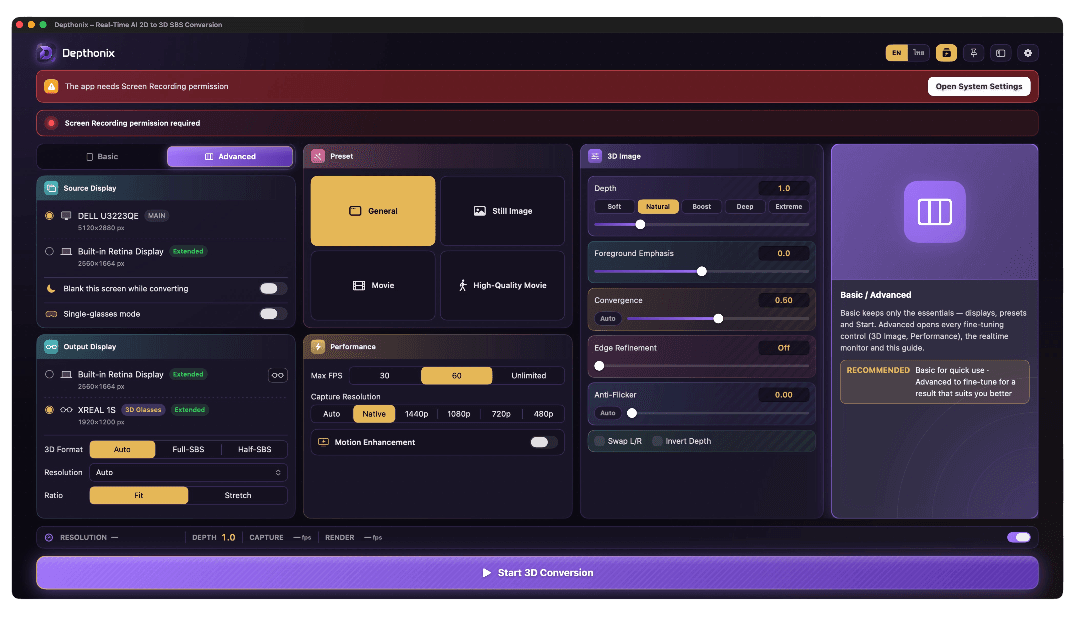
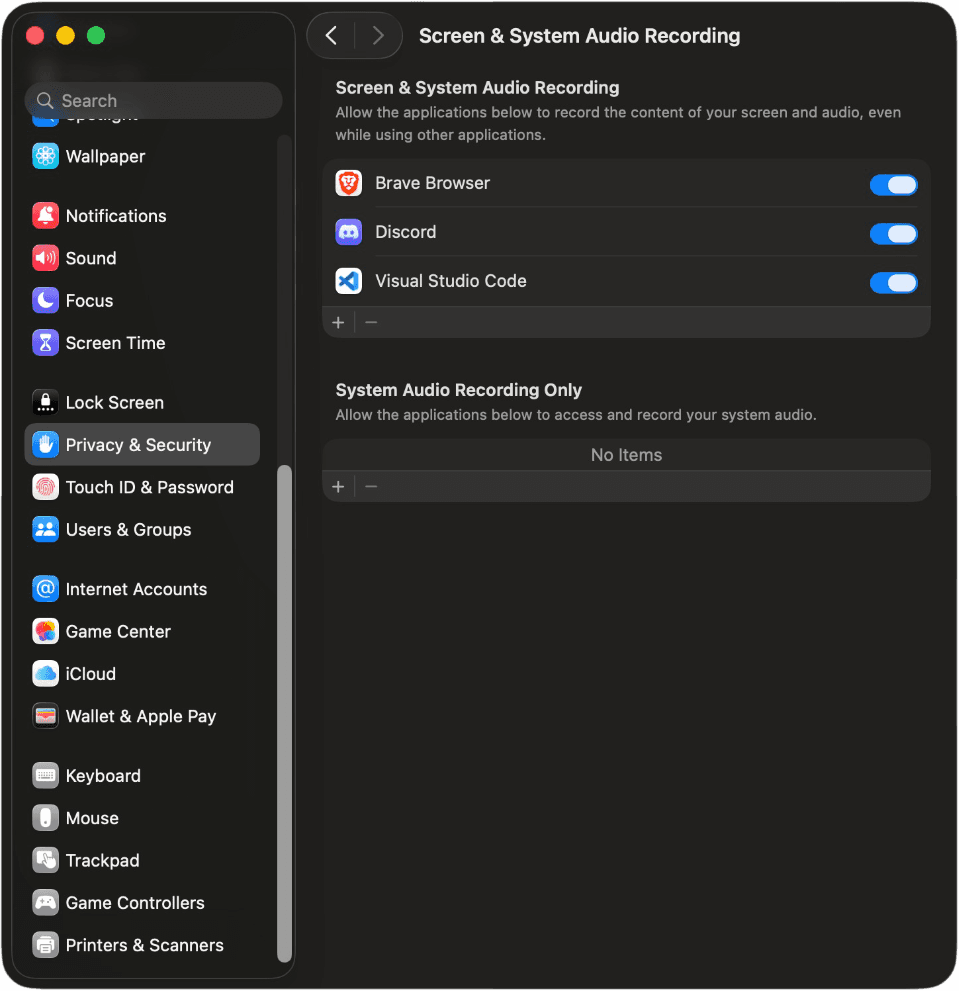
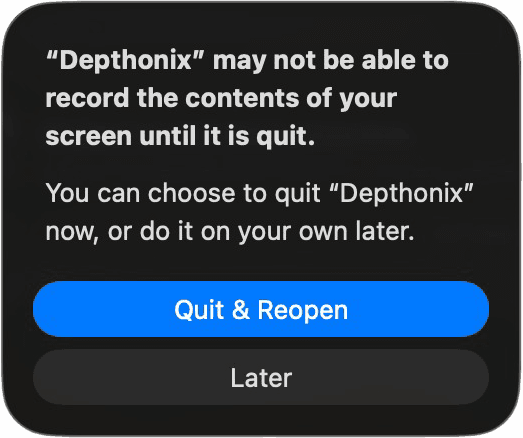
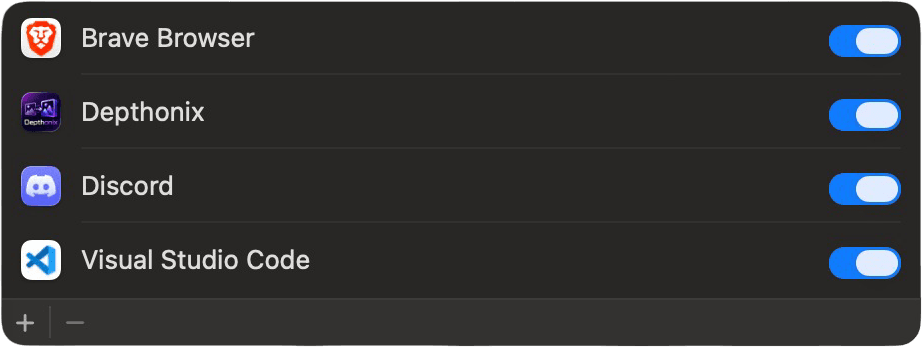
Depthonix reads the screen purely to generate the 3D image on your device. Screen content is never recorded, stored, or sent anywhere.
Reinstalling or updating to a new version? macOS may ask for Screen Recording permission again for the new build. If converting stops working after an update, just repeat the steps above — remove the old Depthonix from the list with the “–” button, add the new one, then Quit & Reopen.
How Activation & Your Free Trial Work
The first time you sign in inside the app, it activates on that computer and your 7-day full-feature trial begins. A few things worth knowing:
Creating an account on the website doesn't start the clock. Your 7-day trial begins only when you first sign in and activate inside the app on your computer.
The trial is remembered by the computer itself — not only by your account. Each computer can run the 7-day free trial once.
If a computer has already used its trial, signing in with a brand-new account on that same computer puts you on the Free tier right away. A different email doesn't grant a second trial on the same machine.
A Full License is tied to your account, so it unlocks every feature on any computer you sign in to.
How to Use
- 1Open Depthonix, sign in with your account and activate this machine — one account runs on one active device. Press the Start button, or open Settings → Account, to sign in.
- 2Connect your AR/XR glasses to your computer and switch them into their 3D mode (Full-SBS or Half-SBS) before you start — use Full-SBS for the sharpest picture if your glasses support it.
- 3Pick the screen to convert and select the glasses display.
- 4Press Start — 3D appears on your glasses instantly.
- 5Adjust depth with the Soft → Extreme chips, or start from a one-tap Preset.
- 6Tune Performance Mode, frame rate and resolution in the Performance card for smoothness — if the machine runs hot or the picture isn't smooth, start by switching Performance Mode to Balanced or Efficient.
During the 7-day trial every feature is available. When the trial ends, your account moves to the Free Version, where you can convert for 5 minutes at a time with a 5-minute break in between. A full license removes the limit for unlimited use.
Moving to a New Computer
One account runs on one active device at a time, but you can move between machines as often as you like — your trial days and license follow your account.
- 1Install Depthonix on the new computer (see Installation above) and sign in with the same account.
- 2If the old machine is still active, the app asks you to confirm — press “Use on this device” and the new machine takes over right away.
- 3The old machine stops converting within a few minutes. You can also deactivate a device anytime from Profile → “Your Device” on this website.
Moving devices never resets your trial days.