Special Modes
Single-glasses mode (incl. 3D projectors and TVs) and Remote Screen to a smartphone.
Single-Glasses Mode
Use Depthonix with just the glasses — no separate monitor needed. The mode runs at your glasses' native resolution for maximum smoothness and sharpness.
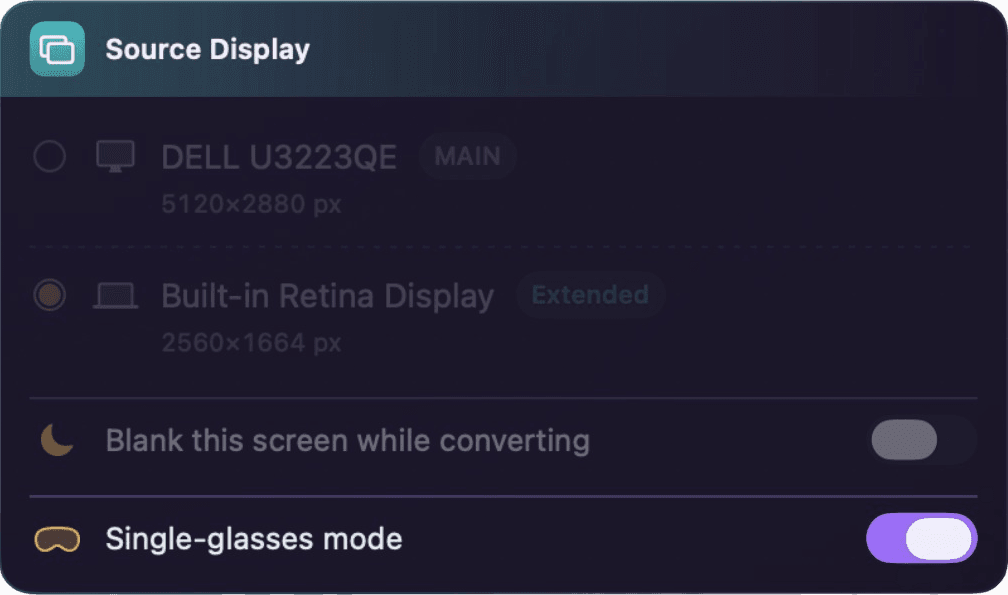
- 1Turn on “Single-glasses mode” in the Source Display card.
- 2Press the button on your glasses to enable 3D Mode / Full-SBS, then press Start.
- 3Your desktop moves to a working screen shown in the glasses, and windows of other apps left open on other screens are moved along automatically.
- 4Stop converting to return to normal.
Requires glasses with a Full-SBS (wide 3D) mode. For a 3D projector or TV: set 3D Format to Half-SBS and press Start, then switch the device to its Side-by-Side mode and press any key on the keyboard to begin.
Remote Screen
Send the 3D picture and the sound from your computer to AR/XR glasses connected to an Android phone, over your Wi-Fi — no cable between the glasses and the computer. The phone doubles as a trackpad and keyboard for the computer, so you can sit anywhere in the room, as long as the Wi-Fi reaches.
What You Need
An Android phone (Android 10 or newer) whose USB-C port supports video output (DisplayPort Alt Mode) — the same requirement as using the glasses with the phone on its own.
The computer and the smartphone must be on the same Wi-Fi network — 5 GHz recommended for the most stable connection.
The Depthonix Remote app (APK) installed on the smartphone — get it from the download page. The first time, Android may ask you to allow installing apps from unknown sources — confirm to allow.
The Android app (APK) is on the download page, next to the macOS and Windows installers — install it on the smartphone the glasses are connected to.
Pairing and Starting
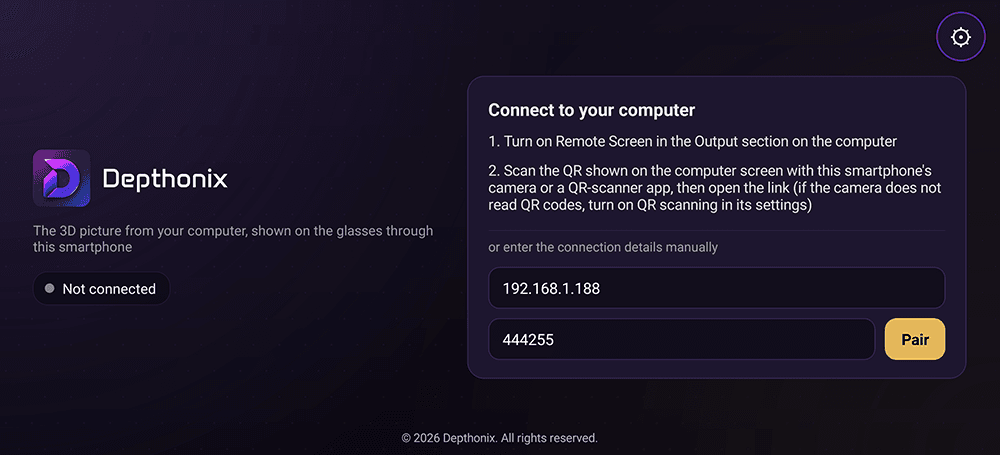
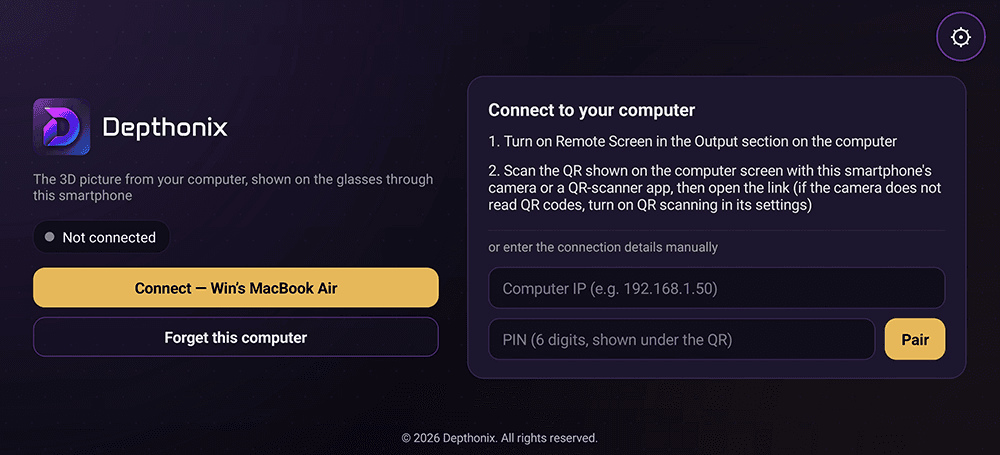
- 1Install the Depthonix Remote app on your smartphone and open it. The first screen is the pairing screen — it shows “Not connected” and a “Connect to your computer” card.
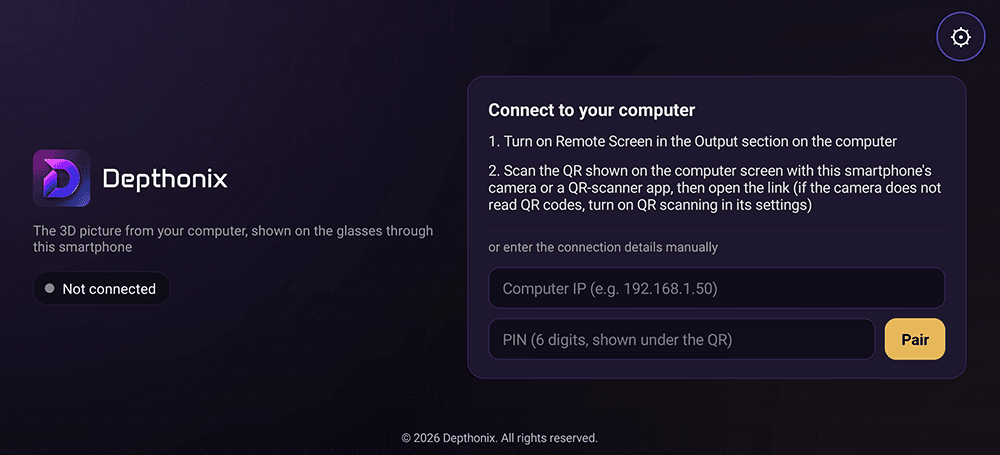
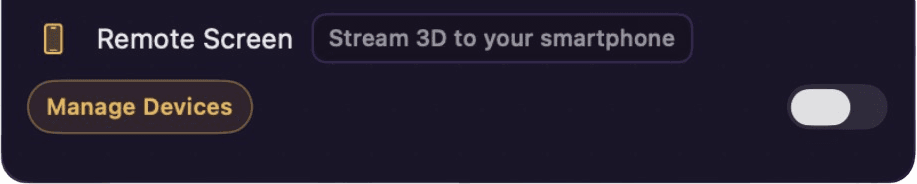
- 2On the computer, open Depthonix, sign in, and turn on the “Remote Screen” switch (Stream 3D to your smartphone) in the Output Display card. The “Manage Devices” button opens a window for managing the list of paired smartphones.
- 3The “Remote Screen” window appears with a QR; the IP and a 6-digit PIN are shown underneath (the QR is valid for about 2 minutes — press “New QR” when it expires). Scan the QR with the smartphone's camera (or any QR-scanner app) and open the link that appears — the Depthonix Remote app on the smartphone opens by itself.
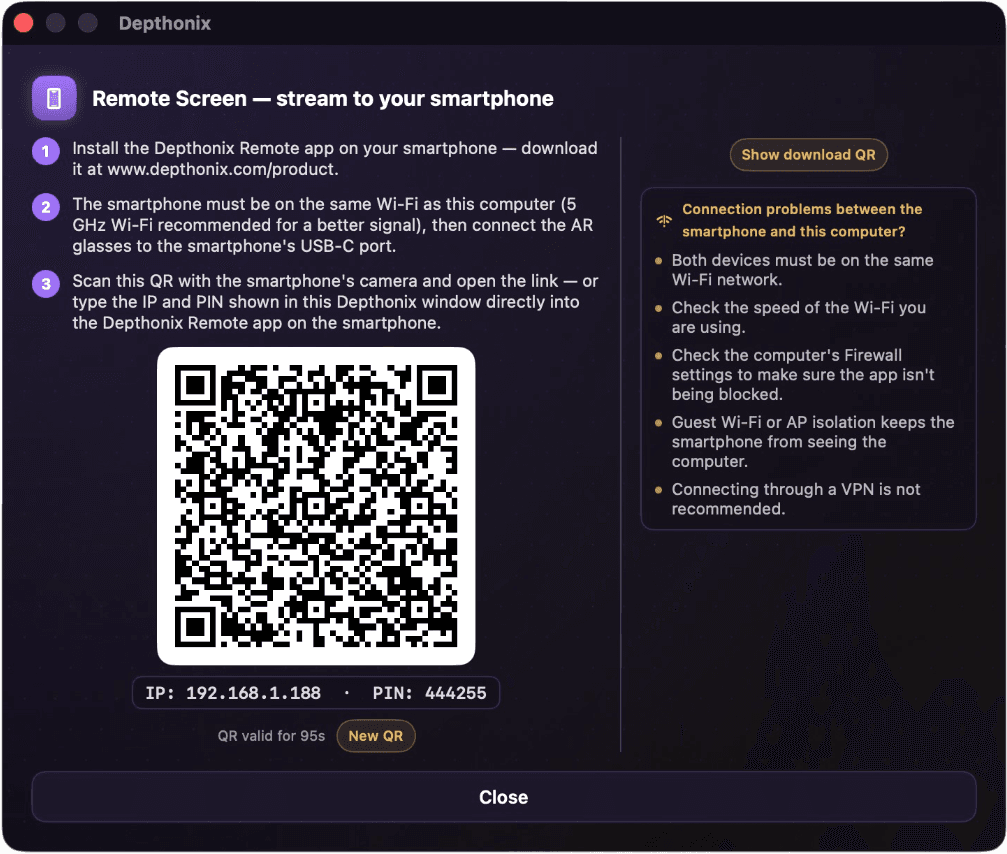
- 4Or enter the connection details manually: type the computer's IP and the 6-digit PIN shown under the QR into the fields in the app on the smartphone, then press “Pair”.
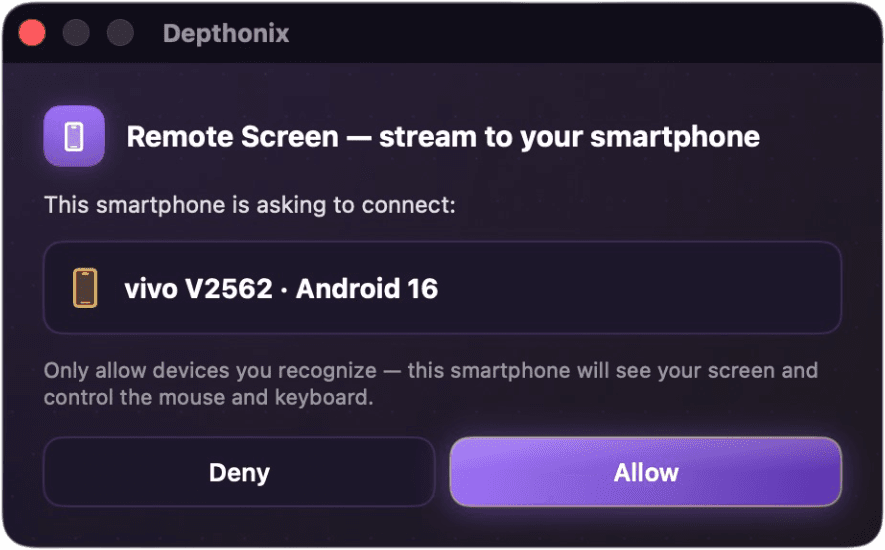
- 5The computer shows a “This smartphone is asking to connect:” window with the smartphone's model — press “Allow” only for a device you recognize, because this smartphone will see your screen and control your mouse and keyboard (press “Deny” if it isn't yours).
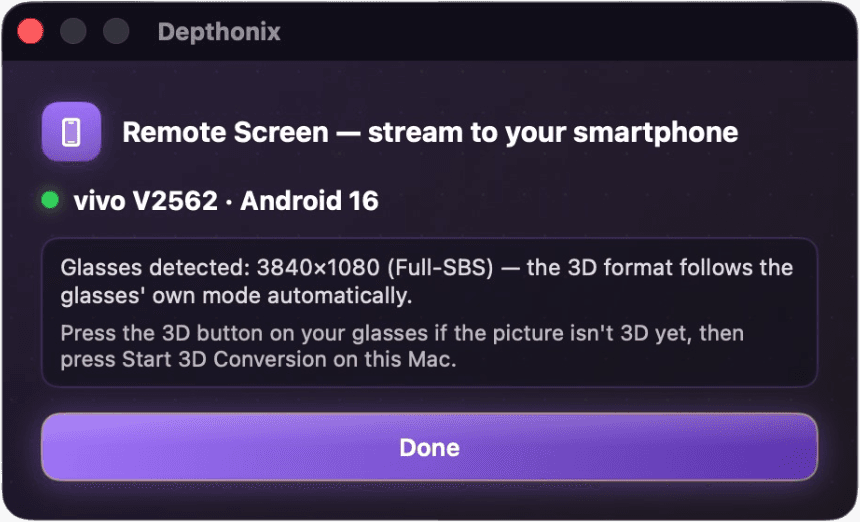
- 6Once paired, the window shows a green dot with the smartphone's name and the message “Glasses detected” — the 3D format follows the glasses' own mode automatically. If the picture isn't 3D yet, press the button that switches the glasses into 3D mode first, then press “Done”.
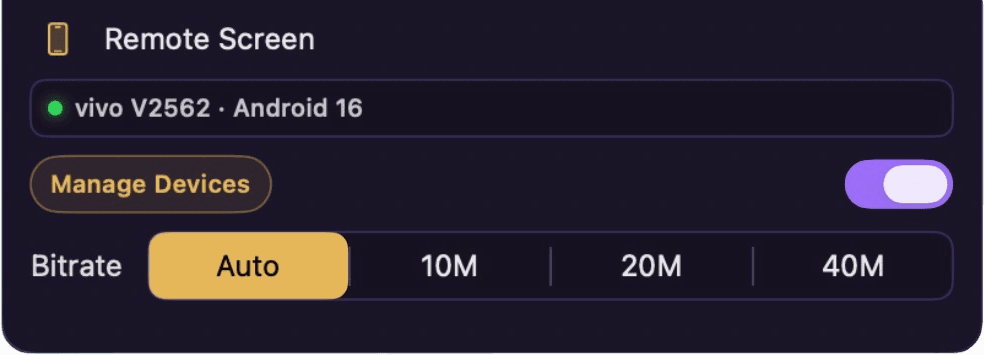
- 7The Remote Screen row in the Output Display card now shows the smartphone's name with a green dot, plus a Bitrate picker (Auto / 10M / 20M / 40M) — Auto is recommended. From now on this smartphone reconnects by itself, no QR needed.
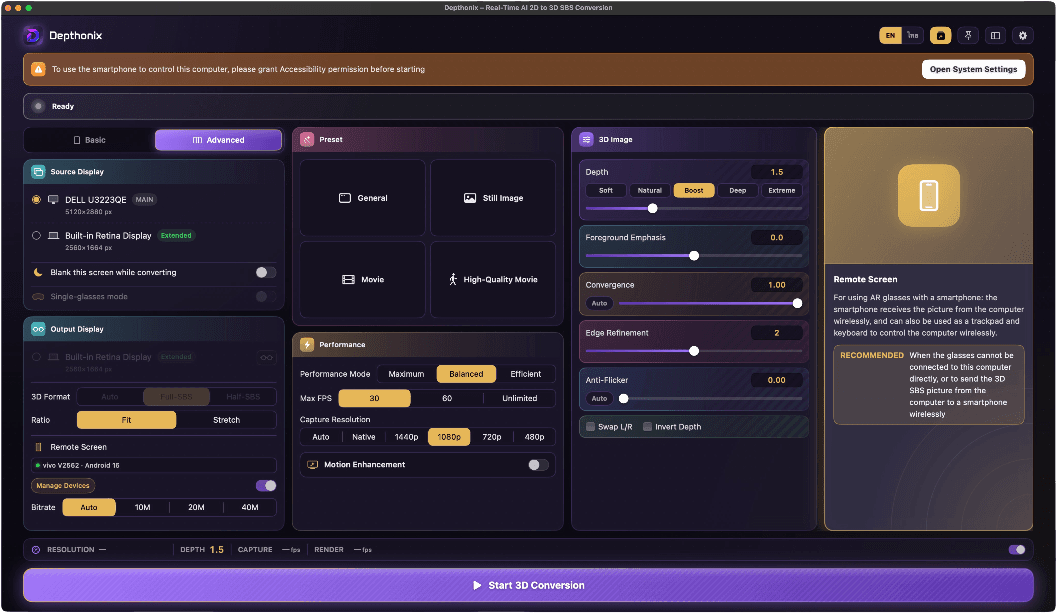
- 8The first time, a banner says “To use the smartphone to control this computer, please grant Accessibility permission before starting” — press “Open System Settings” and switch Depthonix on under Privacy & Security → Accessibility.
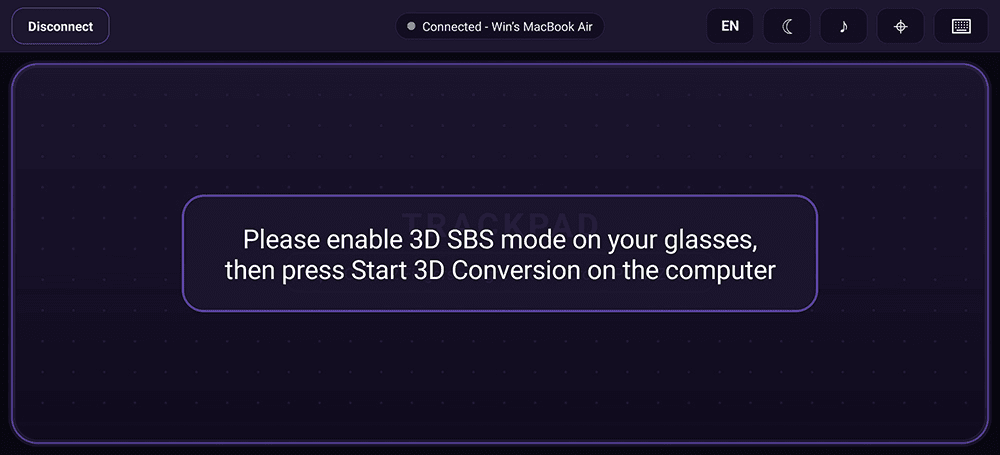
- 9Until you press Start, the smartphone screen is a trackpad with the message “Please enable 3D SBS mode on your glasses, then press Start 3D Conversion on the computer” — switch the glasses to 3D SBS first; nothing is streamed until you start conversion on the computer.
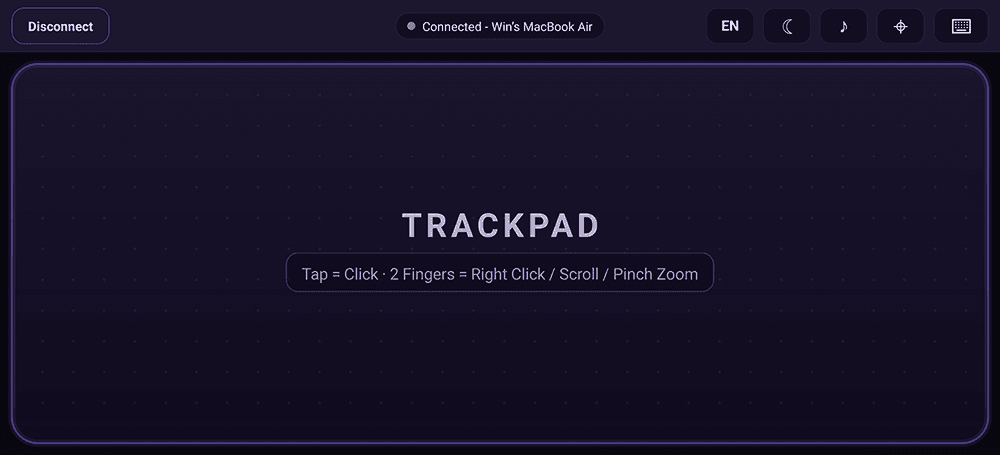
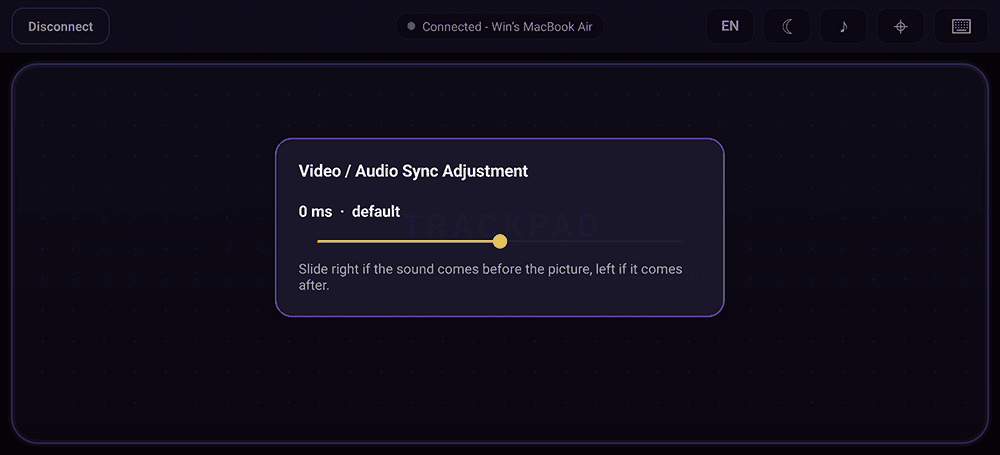
- 10Once conversion starts, the 3D picture and the computer's sound appear in the glasses and the smartphone screen is a full-screen trackpad. The top bar has the “Disconnect” button (left), the “Connected” status with the computer's name (centre), and the button cluster on the right: Language (EN / ไทย), Screen off (☾), Audio sync (♪), Re-center pointer (⌖) and Keyboard (⌨) — each is described in the next section.
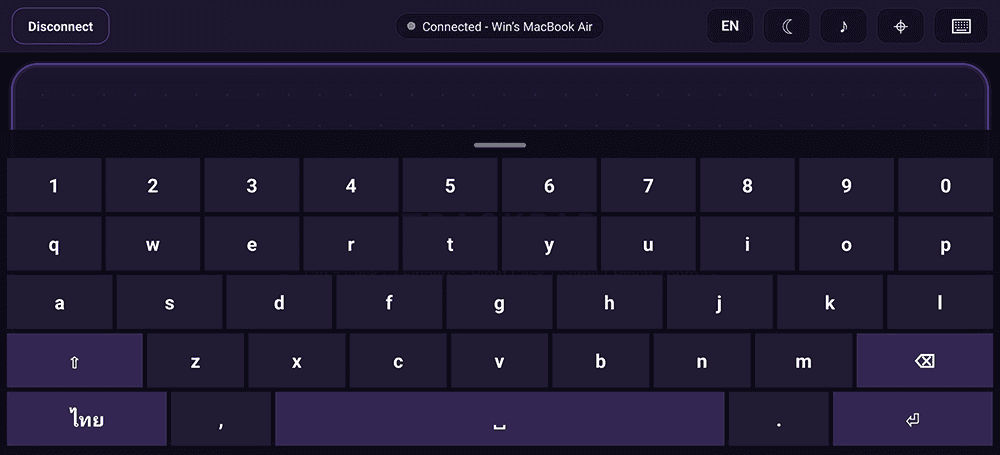
- 11Tap the keyboard button at the top right to open the built-in keyboard. Its “ไทย / ENG” key switches the language — Thai types correctly even when the computer's keyboard layout is English. Drag the handle at the top of the keyboard to change its height, and tap the keyboard button again to hide it.
- 12Tap the ♪ button in the top bar to open “Video / Audio Sync Adjustment”. The default is 0 ms — slide right if the sound arrives before the picture, left if it comes after (tap outside the card to close it). The phone remembers the setting.
- 13The next time you open the app, the pairing screen already remembers the computer: press “Connect — <computer name>” to reconnect right away, no QR needed. “Forget this computer” (it asks you to confirm) removes the pairing — use it when the computer's IP address has changed (a different Wi-Fi network, or a new IP from the router): press Forget, then pair again with the QR or the IP + PIN.
The Phone Screen While Streaming
The phone locks to landscape and works as a trackpad. Along the top bar, from left to right:
Ends the session and returns to the pairing screen. The pairing itself is kept.
The connection state, e.g. “Connected” with the computer's name.
Switches the app's language on the spot — the same setting as Settings → Language.
Blacks out the phone screen while the glasses keep playing — less glare, less battery. Tap the screen to bring it back. Don't use the phone's real power button: that switches the glasses off too.
Opens the Video / Audio Sync Adjustment slider (default 0 ms): slide right if the sound comes before the picture, left if it comes after.
Moves the mouse pointer to the exact centre of the computer screen — handy when you've lost track of it.
Opens the built-in keyboard with an ENG / ไทย key — Thai types correctly even when the computer's keyboard layout is English. Drag its top edge to resize it.
Trackpad Gestures
Move the pointer · tap = click · double-tap, hold and move = drag
Tap = right click · drag = scroll · pinch = zoom in / out
Good to Know
Streaming begins only when you press Start on the computer — until then a paired phone shows a waiting card, and Stop returns it there without dropping the pairing.
Each time Remote Screen is switched on, the app sets Max FPS to 30 and Capture Resolution to 1080p for a smooth, stable stream. You can change both afterwards in the Performance card, but higher values cost more Wi-Fi bandwidth and battery.
Use Full-SBS if your glasses support it — in Half-SBS each eye gets half the horizontal resolution, and the app shows a reminder once per session.
Unplugging the glasses, or the glasses switching 3D mode, pauses the stream for a moment; it resumes by itself when the display comes back.
While Remote Screen is on, the Output Display list and Single-glasses mode are disabled (the phone is the destination), and the menu-bar icon shows a streaming indicator the whole time the screen is being sent.
Paired phones are listed in Settings → General → Remote Screen (or press “Manage Devices” in the Output Display card), where you can remove one at any time. Two phones of the same model are told apart by a short code after the name.
While the computer is converting to 3D, mouse control may feel a little laggy, depending on the computer's specs — for control, we recommend the trackpad on the smartphone, which feels smoother.